If you're looking for a good, affordable smart speaker but don't know where to start, fear not! We've lined up a list of the best smart speakers in various categories to help you decide which one to add to your home. Our best overall choice is the Sonos One due to its price, performance, and interoperability with multiple platforms.
Best Overall: Sonos One

Like most Sonos products, the Sonos One offers audiophile quality sound at a compelling price. The One in particular punches above its weight class considering its relatively small size at less than four pounds. This allows the device to fit in just about any space, from a bookshelf, to a fireplace mantel, to your kitchen counter.
The One packs two Class-D digital amplifiers, one tweeter, and one mid-woofer in that small-ish frame. You can combine it with other Sonos devices in multi-device groups, or you can create a stereo pair. The device has a far-field microphone array to enable it (and whatever smart assistant you use) to hear your commands from across the room, and there is also a physical mute switch for when you don't want it to hear you.
One thing that we love about the Sonos One (and the family of Sonos products in general) is that it is as platform agnostic as possible when it comes to working with the widest range of content providers and smart voice assistants. Sonos speakers support more music services than those from Amazon or Google/Nest, and work with Google Assistant, Alex, and AirPlay 2. You can also control the One and any other Sonos speakers you may have through the Sonos app.
The biggest downside to the Sonos One is that it does not support Bluetooth playback, and you can't use these speakers to stream TV audio unless you have an Apple TV and use AirPlay 2. While it puts out strong sound, it can't quite compete with bigger, more room-filling devices like the Echo Studio.
Pros:
- Dynamic, room-filling sound
- Integrates with Sonos ecosystem
- Supports wide variety of music services
- Works well with Alexa and Google Assistant
Cons:
- Not as powerful as bigger speakers like Echo Studio
- Not for TV audio
- No Bluetooth support
Best Overall
Sonos One

An attractive smart speaker for whole-house coverage
The Sonos One is great for pairing and putting all around your home. It supports every major music service as well as Alexa and Google Assistant.
Best for Alexa: Amazon Echo (3rd Gen)

Amazon introduced the original Echo to Prime users in late 2014, and since then the product has spawned not only a whole line of Amazon smart speakers but an industry full of competition. The Echo, in particular, is now on its third iteration, and while it may not seem as flashy or as exciting as some of the other devices in the lineup, it does what it does quite well.
This 3rd generation borrowed heavily from the more premium Echo Plus in terms of aesthetics and performance. It has a softer, rounder fabric cover than the second-generation Echo and its speakers have been substantially upgraded to match the "sound architecture" of the more expensive Echo Plus. These speakers are still not as complex as the Sonos One's, but it does come with a line-out 3.5mm cable and Bluetooth capability, so you can pair with other speakers or you can connect with other Echos.
As with smartphone iterations, one way that the likes of Amazon and Google have distinguished minor outward upgrades is to add new colors, and this year the Echo added a really nice Twilight Blue. I'm a big fan of this color palette and hope to see more of it across the line.
Some may consider the Echo's lack of display to be a drawback, particularly for the price. If that's you, then you may be happier with an Echo Dot with Clock or Echo Show 5. You'll also save some money in the process.
Pros:
- Improved sound architecture over the previous generation
- Plush styling like Echo Plus
- New Twilight Blue color
Cons:
- No smart display or LED clock
- Expensive
Best for Alexa
Amazon Echo (3rd Gen)

Better sound and cooler colors
The 3rd gen Echo is built for better sound with a softer, plusher look that comes in four colors, including the soft new twilight blue.
Best for Google Assistant: Nest Mini (2nd Gen)

Nest followed a time-honored formula with the look and design of the Nest Mini (2nd Gen) and that is, if it ain't broke, don't fix it! Formerly known as the Google Home Mini, the new Nest Mini follows the design cues of the first generation, with some subtle but important tweaks.
For starters, the fabric mesh covering the exterior of the product is made from 100% post-consumer recycled plastic bottles (more of this please!). Nest also updated the pink and blue colors to have a more subtle shading (now Coral and Sky), and it added a nook on the back of the device so that you can easily mount it to your wall.
The biggest improvements are on the inside (where it counts). The speakers are much better, and Google claims they are capable of twice the bass as before. There is one more microphone than on the previous model, so the Google Assistant can hear you even better than before. The Nest Mini also has an updated processor, which means the Google Assistant should be able to handle requests much more quickly, accurately, and securely.
As with the third generations of the Echo and Echo Dot (sans clock), the Nest Mini does not have any sort of display, save for the basic LED touch controls on top. Speaking of those touch controls, some have reported that they can be a bit unresponsive and fidgety, so keep that in mind when considering this otherwise solid speaker.
Pros:
- Upgraded processor
- Now can be wall-mounted
- Fabric cover made from recycled materials
- Better bass for fuller sound
- One more microphone than the previous generation
Cons:
- Touch controls are not great
- No information display
- Still fewer microphones than Echo Dot
Best for Google Assistant
Nest Mini (2nd Gen)

Improved assistant and better bass
There isn't much room in such a small device for large improvements, but somehow Nest pulled it off with 2 X better bass and more on-device smarts.
Best Sound: Amazon Echo Studio

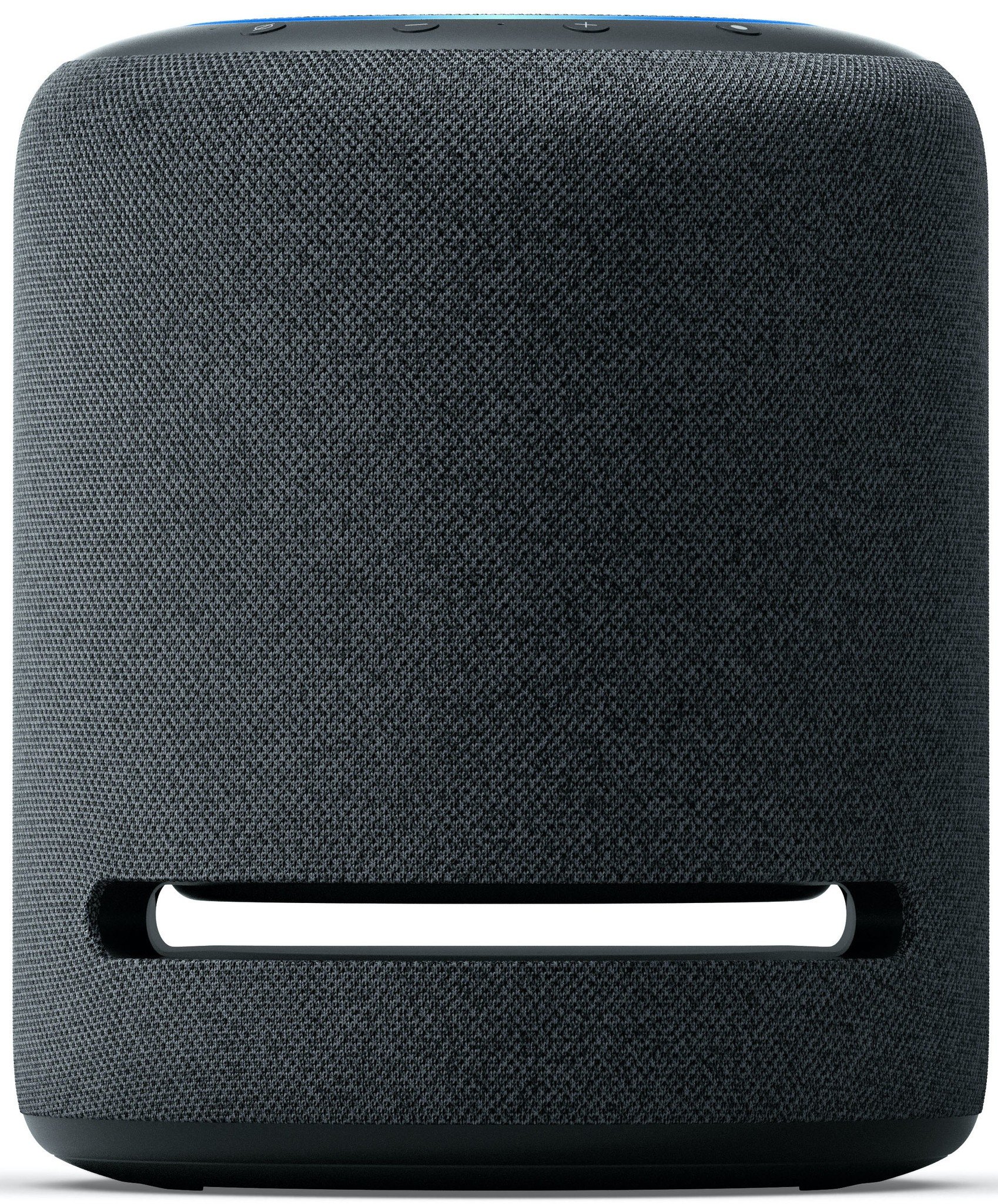
The Echo Studio is Amazon's first big bet on big sound. Think Apple's HomePod, but bigger, with arguably more room-filling sound and at about half the price.
It's no coincidence that this product follows hot on the tail of Amazon's HD music service launch. It has three midrange 2-inch speakers, a 1-inch tweeter, a large 5.250-inch woofer, and Dolby Atmos technology, which makes it more than capable of handling high bitrate music formats that have been mastered for 3D music.
The Echo Studio also has a nod to smart home management and security, with a physical microphone mute switch, and a built-in Zigbee smart hub. Amazon recently introduced a new program it calls "Certified for Humans," which aims to help smart device partners make their setup and user experiences much easier for novices. In the interim (and for older smart devices), the Zigbee hub should help make that smart device setup and interoperability much easier as well.
Like all Echo devices, you can pair two Echo Studio speakers together for stereo sound, or you can group them with other speakers in multi-room groups. You can also pair them with your Fire TV for a richer TV viewing and listening experience.
There are a few drawbacks to these big boys. They are bulky, weighing in at eight pounds each! They are also the most expensive Echo speaker on the market to date. But for what you get, I think they're worth it.
Pros:
- Multi-directional, immersive sound
- Supports multi-room audio
- Can be paired with another Echo Studio or Fire TV
- Supports multiple music services, Airplay 2
- Physical microphone mute switch
- Built-in Zigbee smart home hub
Cons:
- First-gen product
- Most expensive Echo device
Best Sound
Amazon Echo Studio
Great alone, or with friends
The Echo Studio is about providing the best sound possible. It can do so on its own or paired with another Echo Studio and Echo Sub for a great Fire TV.
Best Value: Amazon Echo Dot with Clock

As we mentioned with the Nest Mini, Amazon didn't have to do much to update the third-generation Echo. In fact, this update seems so simple, we wonder why nobody thought to do it sooner!
Basically everything about this Echo Dot with Clock is the same as with the Echo Dot (3rd Gen) except for the "clock" part. Amazon added a nifty LED clock behind the fabric cover on the Dot, which makes it much more useful as a smart speaker, and an even better value for the money than before.
The LED display can't show you notifications or much text, but what it can do is still helpful. It can show you the time, all the time, which is so much better than calling out to ask Alexa. The display can also show you the weather and any timers that you have asked Alexa to set. Such a simple upgrade that goes such a long way!
Pros:
- Subtle LED clock display
- Snooze functionality at a tap
- Retains all of what's good about Echo Dot (3rd Gen)
Cons:
- Only currently available in one color
- Display can't show notifications
Best Value
Amazon Echo Dot with Clock

Now even more perfect for your nightstand.
The smallest Echo speaker now comes with an LED clock, and when an alarm comes up, you can tap the top to snooze it.
Best Large Display: Nest Hub Max

While Amazon started its smart display product lineup large with the Echo Show (1st and 2nd Gen) at 10 inches and then started making smaller smart screens, Google/Nest approached the problem from the other end. The first Google Home Hub (now Nest Hub) was a mid-sized form factor, and now Nest has followed that up with a much anticipated Nest Hub Max, which comes in at around 10 inches.
What makes the Nest Hub Max such a great product is not just its beautiful touchscreen or its surprisingly good-sounding speakers. It's all of the great Google-y and Nest-y features that come with it. With its built-in Google Photos integration, this device makes an amazing smart picture frame. Its Face Match feature lets it recognize individual faces and family members and show them their daily itinerary (multi-user support for the win!). There's simply no better way to watch YouTube videos in the kitchen while prepping your next meal.
One of the more intriguing features of the Nest Hub Max is its Nest smart home integration. Not only does the device function as a smart home hub and controller, but with its front-facing camera you can actually turn it into a Nest camera to monitor your space (requires a Nest Aware subscription). Our initial review of the Nest Cam feature considered it not quite ready for prime time, though your mileage may vary.
Pros:
- Cool new Face Match feature
- Physical microphone and camera cover switch
- Google Photos integration
Cons:
- Nest Cam feature not fully-baked
- Rear-firing speakers could be better
Best Large Display
Nest Hub Max

More Max to love.
Improved speakers and a larger screen combine seamlessly with really interesting software enhancements to make a solid upgrade from the original Nest Hub.
Best Mid-Sized Display: Amazon Echo Show 8
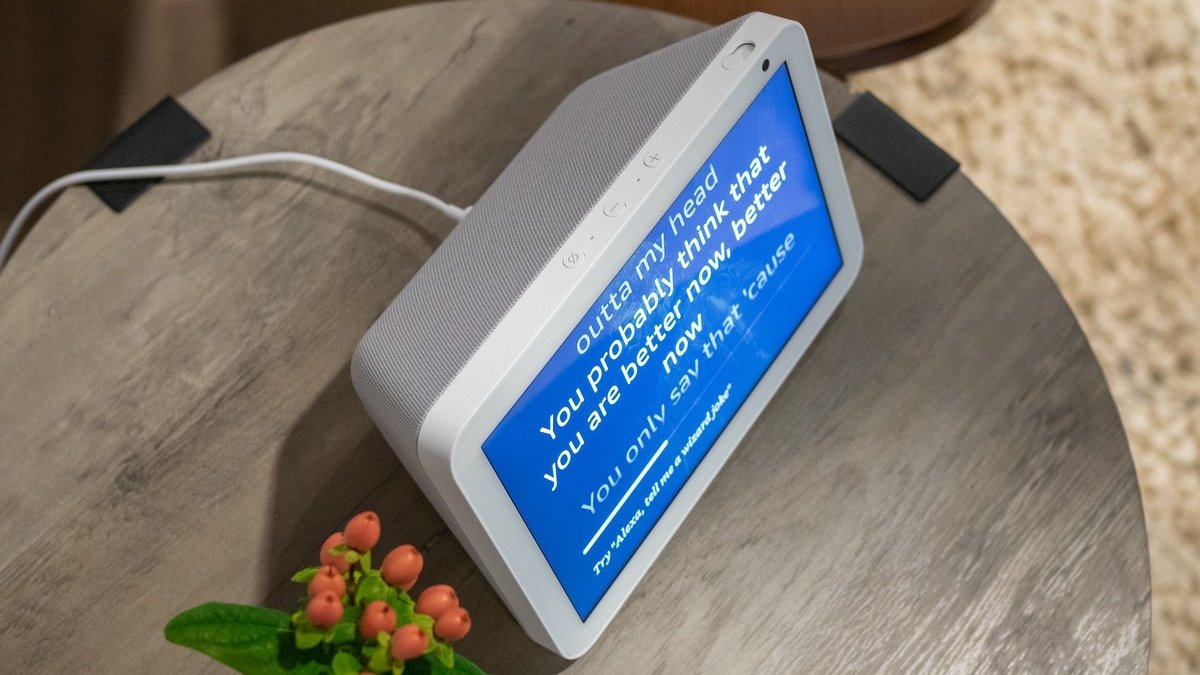
In the Echo Show 8 Amazon took the best features of its other products in the line and brought them to this mid-sized smart screen that I like to refer to as the "Goldilocks" speaker. It's not much bigger than the Echo Show 5, but it is substantially smaller than the Echo Show (2nd Gen).
This device has the safety features introduced in the Echo Show 5, like the physical shutter for the camera and physical mute button for the microphone, as well as the same high definition screen of the Echo Show (2nd Gen). Its speakers and camera are much better than the little Show 5's, and unlike the Nest Hub, it has a front-facing camera for video chatting.
This is a great device to put on your desk, bedside table, or even in the kitchen without compromising on space or taking up too much room. With Amazon's Ring and Eeero integration and Alexa Guard features, it also makes a super-smart home automation hub. That home hub would be a little more useful if you could adjust the viewing angles, but sadly this feature is not included. You can, however, purchase an Amazon or third-party stand to accomplish this.
Pros:
- Sits in "Goldilocks" zone of Echo Show devices
- Disable camera/mic with one switch/cover
- Cheaper than competition
Cons:
- Can't adjust viewing angles without a stand
- No Dolby processing built-in
Best Mid-Sized Display
Amazon Echo Show 8
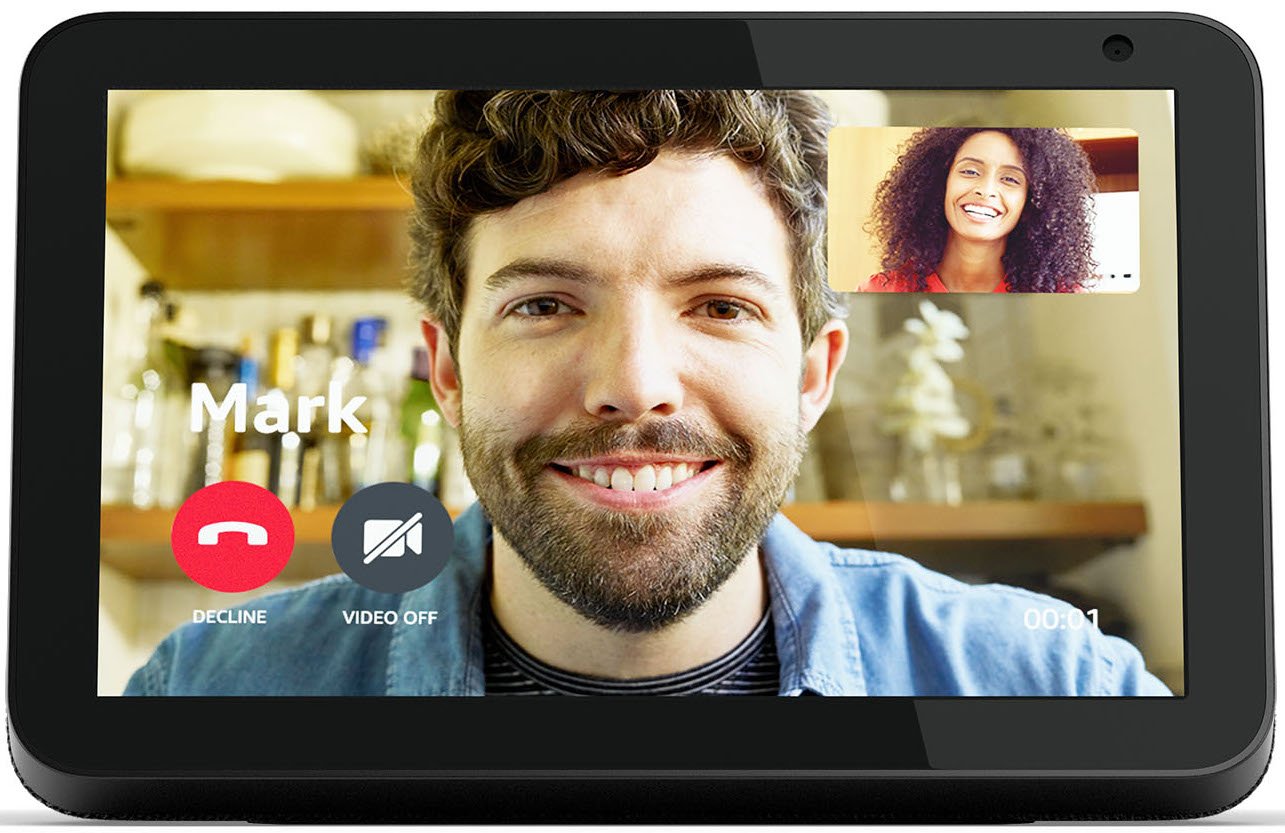
Not too big, not too little, this size is just right.
The Echo Show comes to a more natural size that's easier to place than the 10-inch Echo Show but still comfy enough to watch recipes and videos on.
Best for Kids: Amazon Echo Dot Kids Edition

Amazon has created parallel product lines for its Fire tablets and for the Echo Dot that it calls its Kids Edition devices. Generally speaking, these come in more playful colors and feature kid-friendly content, strong parental controls, and even stronger product warranties. Oh yeah, and they're more expensive than the "regular" versions of the products.
What you get for the increased price though is value and peace of mind. The Echo Dot Kids Edition comes with one year of FreeTime Unlimited, which is Amazon's curated service of kid-friendly and age-appropriate content. In addition to kiddie music, stories, and audiobooks, there are a number of kid-friendly skills that can be used on this Dot as well. FreeTime Unlimited makes parental controls easy, allowing them to set time limits, content, and purchase restrictions.
Just as important as controlling what content your kids have access to is protecting the device. Let's face it, kids destroy things. The Echo Dot Kids Edition comes with a two-year worry-free guarantee, which means that Amazon will replace the device if it breaks, no questions asked!
Pros:
- Fun colors and patterns
- Comes with kid-friendly content
- 1 year of FreeTime Unlimited included
- 2-year worry-free guarantee
Cons:
Best for Kids
Amazon Echo Dot Kids Edition

Alexa fun for the whole family
This little speaker comes in fun kids colors like rainbow and turquoise blue and It features access to tons of kid-friendly content and parental controls.
Best for Outdoors: Ultimate Ears BLAST

One of the biggest drawbacks of smart speakers is their lack of portability, particularly when it comes to the great outdoors. One of the best and most rugged portable speakers on the market is the Ultimate Ears Blast. You can feel confident bringing this speaker with you to your next pool party or picnic, as it has an IP67 water-resistance rating, and can be immersed in water up to one meter for 30 minutes. It's shockproof too, so you don't have to worry if it takes a tumble off of the tailgate!
The Blast is not only tough, but it sounds great too. It has crisp and loud 360-degree sound and 12-hour battery life to keep the party going outside. When the battery gets low, there is an available base charging unit that you can purchase so that Blast can sit on the charger and stay in operation, allowing you to top off your power quickly without fiddling with a USB cord. If you want to really amplify the sound, you can pair it with other Ultimate Ears speakers or up to seven other Blast speakers for a neighborhood block party!
The Blast is optimized to work with Amazon's Alexa smart voice assistant right out of the box. You can ask Alexa to change the song, set a timer, or order Dominos with just your voice, which is very handy when your hands are all messy.
We don't have a lot of bad things to say about the Blast. One thing to keep in mind is that, because it is battery powered, you'll need to remember to charge it every once in a while (not a concern for stationary, plugged-in speakers). There have also been some complaints about the touch controls, though we haven't really experienced that. Remember, you can always ask Alexa to change the song with your voice!
Pros:
- Hands-free Alexa voice control
- Battery-powered and rechargeable
- Pair up to eight Ulitmate Ears speakers
- Waterproof and nearly indestructible
Cons:
- Battery-powered
- Inconsistent tap controls
Best for Outdoors
Ultimate Ears Blast

Affordable outdoor adventurer.
The Blast is a great device for those who like to take their tunes outside. It has 360° sound, 12 hours of battery life, and is shock and water-resistant.
Bottom line
If smart speakers excite you then this is a great time to be a consumer. There are more options out there that are more affordable than ever before. The tricky part is that many of them are increasingly platform-specific, so if you are all-in on Google Assistant or Amazon Alexa, that may sway you one way or another.
If you want a good-sounding smart speaker with platform and assistant flexibility, we recommend going with the Sonos One. It works with both Alexa and the Google Assistant, has the most content partnerships, and sounds great.
Credits — The team that worked on this guide

Jeramy Johnson is proud to help to Keep Austin Weird and loves hiking in the hill country of central Texas with a breakfast taco in each hand. When he's not writing about Amazon products and services, he's defending his relationship with his side-chick Alexa to his family. You can follow him on Twitter at @jeramyutgw.